Back Office & Call Center
Web apps for sales force automation and FMCG call centers
Two web apps I worked on at SonoIT. In the back office, office staff track the field team's sales and visits and manage the data behind them. In the call center app, agents handle calls, orders and store records on one screen.
- Company
- SonoIT Ltd.
- My role
- UX research, product design, UX flows, A/B testing
- Platform
- Web
Overview
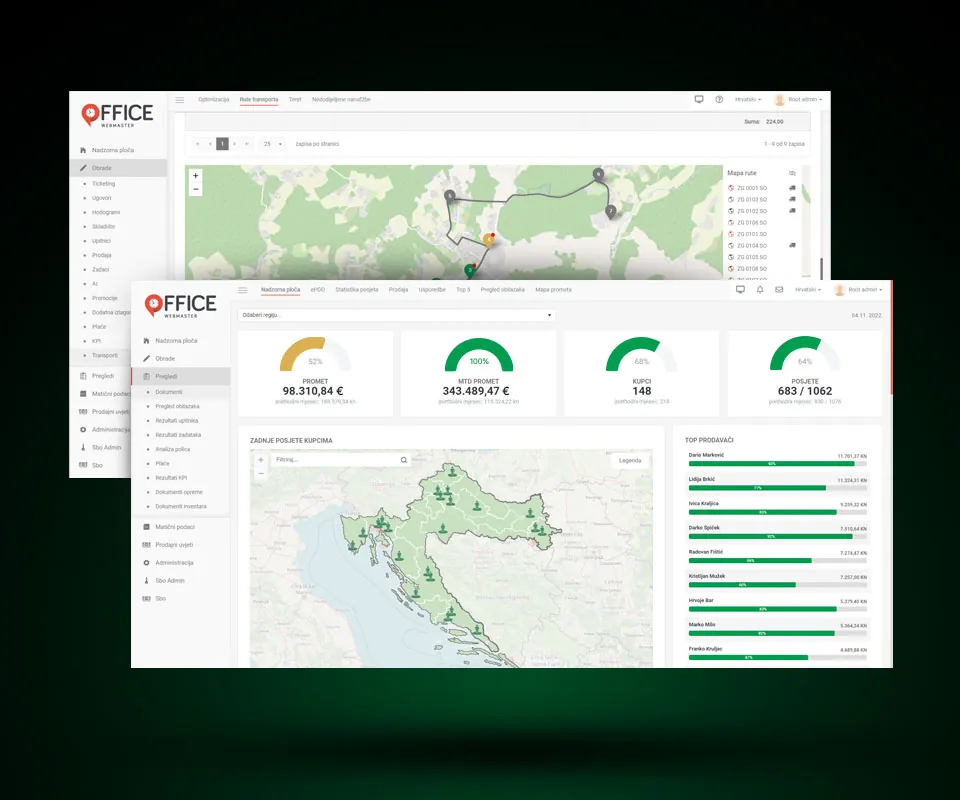
The back office is part of SonoIT's sales force automation (SFA) system. It handles CRM, orders, stock, inventory and route planning, plus AI and automation. Besides the sales dashboard, there are screens for transport (routes, cargo, unassigned orders), master data, sales terms and user setup.
The call center app is for FMCG (fast-moving consumer goods) call centers. It was meant to take work off field teams, cut down on order mistakes and support customer relations.
The customers in it are stores, supermarkets and small shops alike. Each store record holds contact details, the sales rep and supervisor, purchases, debt, tasks and order documents. There's also ticket management, a product and inventory view, call scripting and performance reports.
The challenge
Both apps are dense. The back-office sidebar alone has over twenty items under two headings, processing and reports. A company record has more groups of fields than fit across the screen, and one user profile can carry over 30 permission switches, at scopes like own, region, group or all.
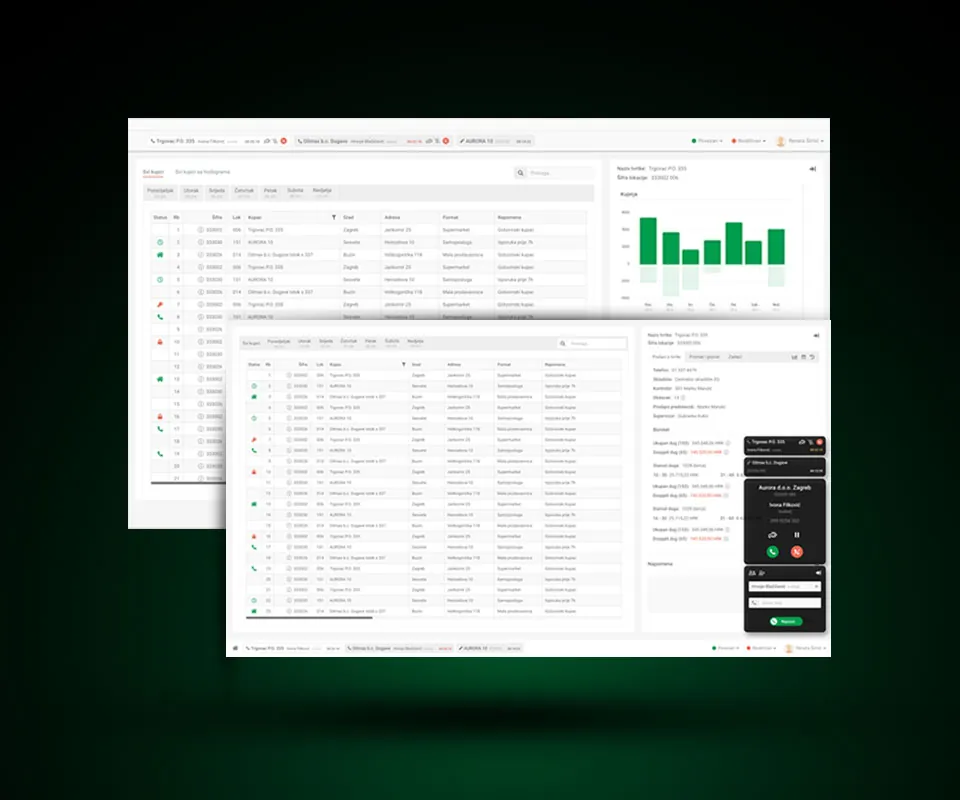
In the call center app, an agent can have more than one call open. In these screens it's three stores at once, with three timers running in the call bar. Those calls share the screen with a wide customer table and a store record.
The work
The back office first, then the call center workspace. Most of the UI in both apps is in Croatian.
Planograms and product classes
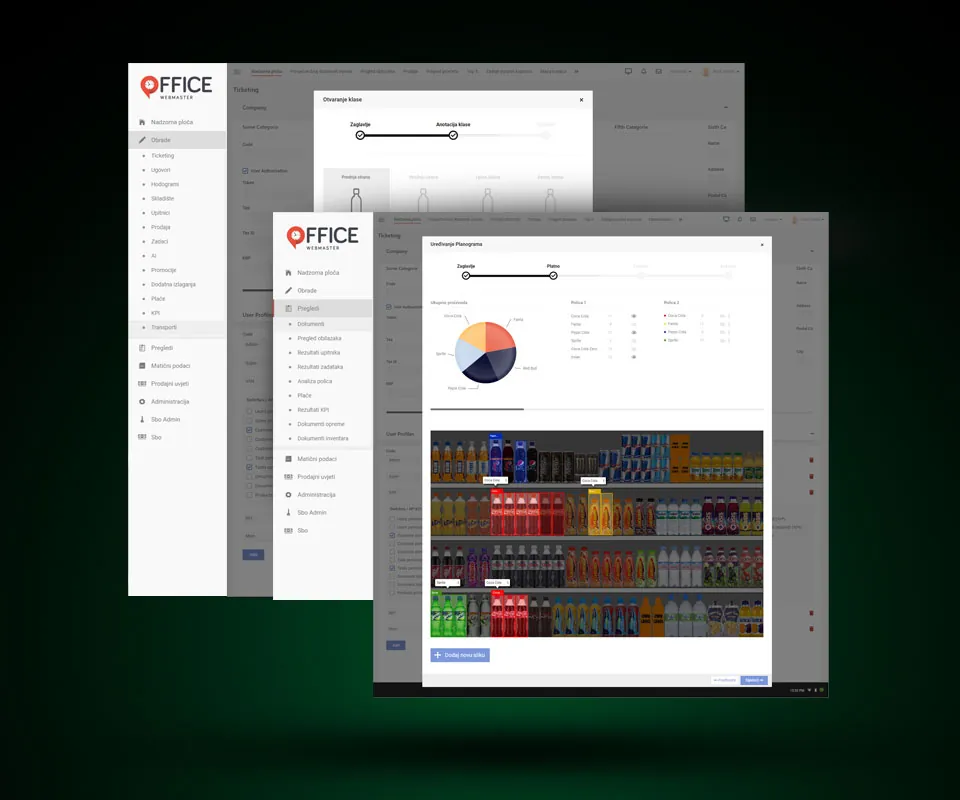
A planogram is the agreed layout of a shelf, edited in a four-step wizard. This is the Canvas step, where products on the shelf photo get outlined and labeled. A button below adds another photo.
The pie chart above the photo splits the total by product, and every shelf gets a list of product counts. In the Shelf 2 list, each product's color matches its outline on the photo.
Underneath is the wizard for adding a product class. It has four tiles, one for each side of the product.
Company and user setup
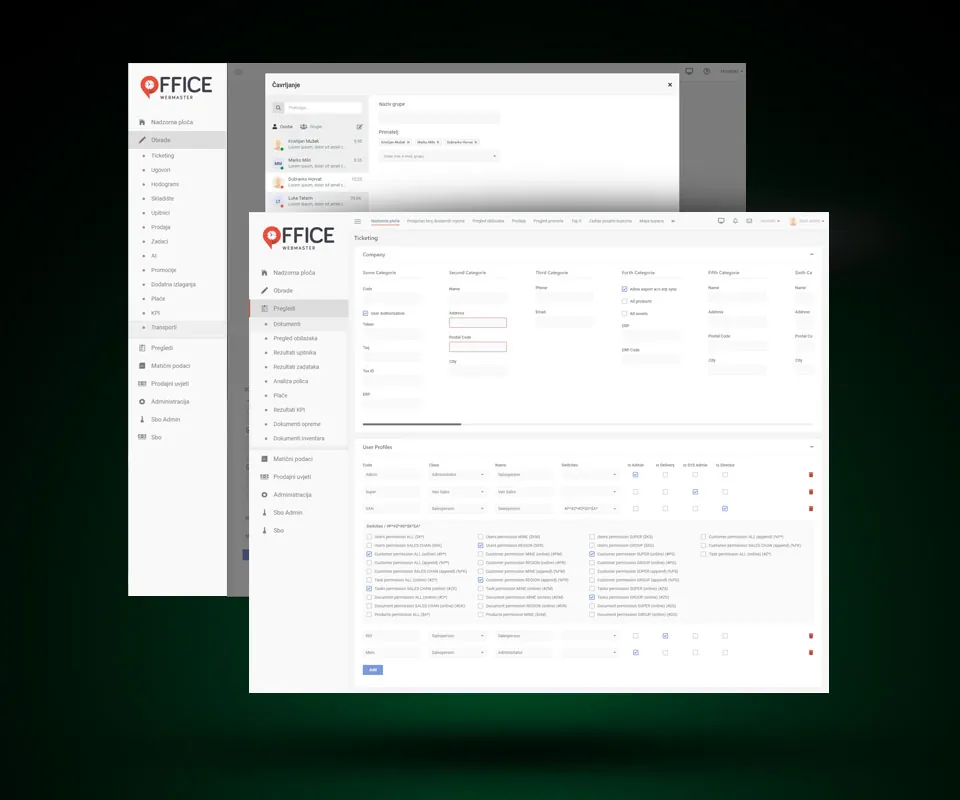
On the Ticketing screen, every group of company fields is a column, and a scrollbar gets you to the ones off screen. The empty Address and Postal Code fields are outlined in red.
User profiles are listed one per row, with a class like Administrator or Van Sales. One is expanded to show its permission checkboxes, and every checkbox has a short code.
The chat window at the back has tabs for people and groups. It's open on the form for a new group with several recipients.
The call center workspace
Two layouts of the agent workspace. One puts the calls in the top bar next to a purchases chart, the other in the bottom bar with a floating call panel.
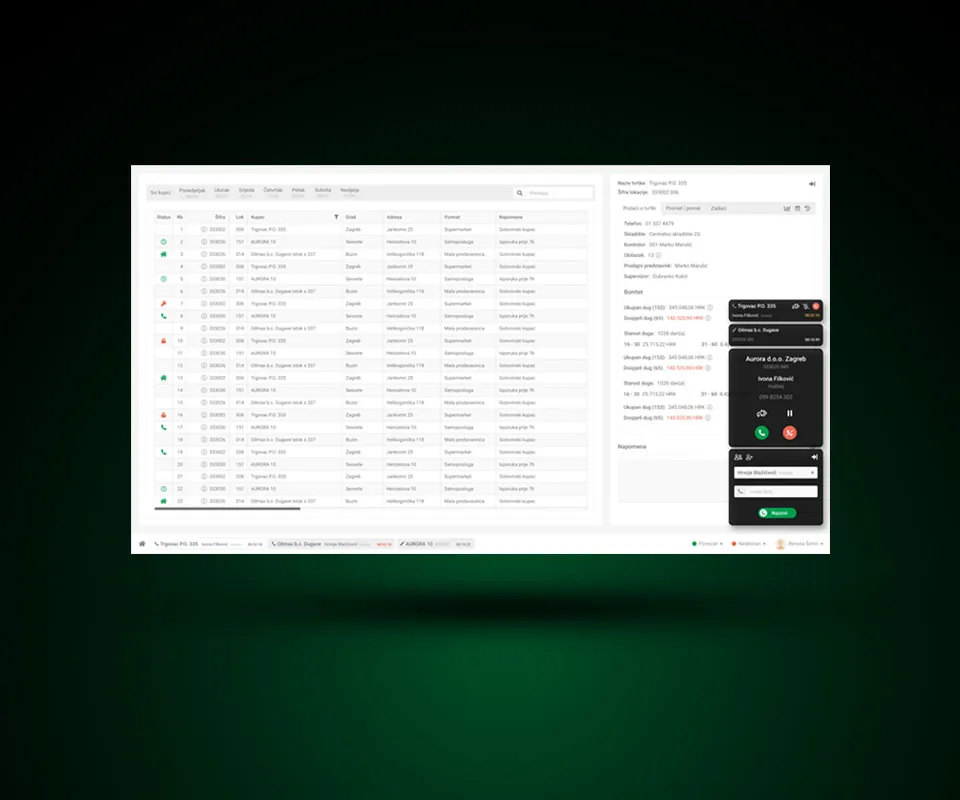
Customer list, store record and calls
The customer table has a tab for each day of the week. Beside it is the store record, with tabs for company details, turnover and returns, and tasks. Debt gets a separate section, and what's overdue is in red.
Open calls appear as tabs in the bottom bar and again as cards in the dark panel, which stands apart from the light workspace. Two cards are collapsed. The expanded one has the contact's name, job title and number, plus the call buttons and a dialer below.
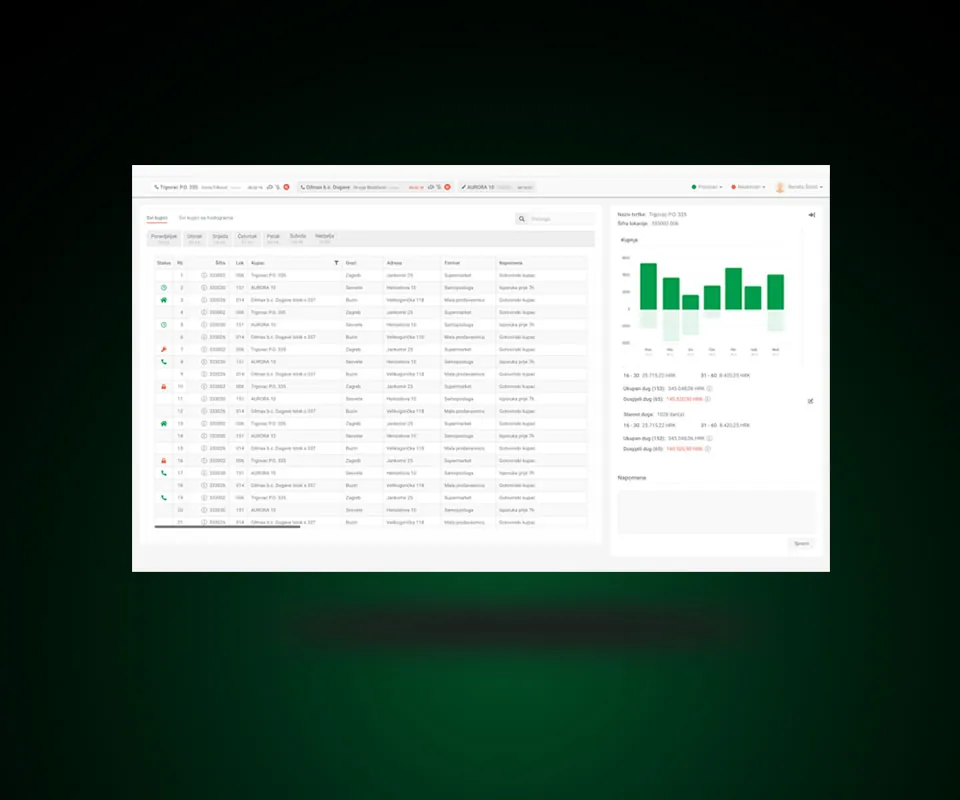
Purchases and debt
Here the store record starts with a bar chart of purchases by weekday. Debt comes next, with total and overdue amounts and two age brackets, 16 to 30 and 31 to 60 days. Then a note field with a Save button.
The calls sit in the top bar this time, with a timer and call buttons on each tab. The agent's name and status menus (Connected, Inactive) are on the right.
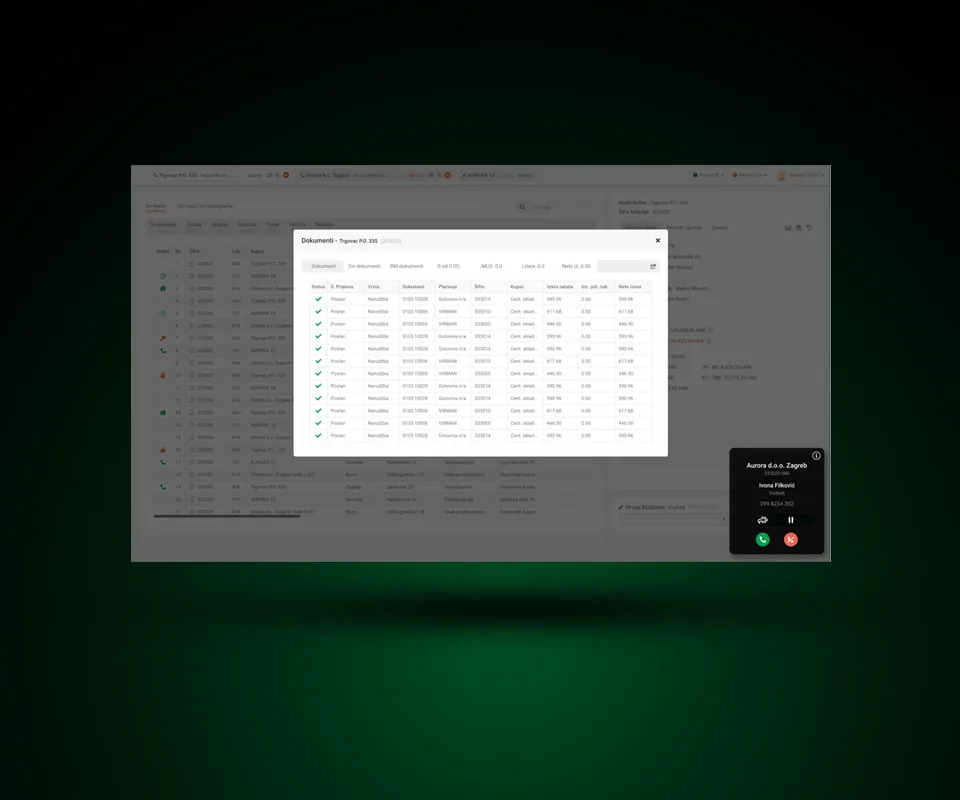
Order documents
This is the Documents window, with the store's orders all marked Sent. Each row has the document number, payment method (cash or bank transfer), discount and net amount.
The workspace behind it dims, but not the call card. It sits above the overlay, so the call controls stay in view.
Contact
Let’s work together.
If you liked what you saw, or just want to say hi, drop me a line.